

Upgrader.pro: CS2 Upgrader
You have skins you never use. And there are skins you really want. Upgrader.pro lets you trade the first kind for the second. The idea is easy. You put a skin on the line. You choose a better skin to aim for. Then you run a CS2 upgrade and try to win it. If you win, you move up to the better skin. If you lose, the skin you put in is gone. After signing in with Steam, you can immediately access your inventory and start using the upgrade system.
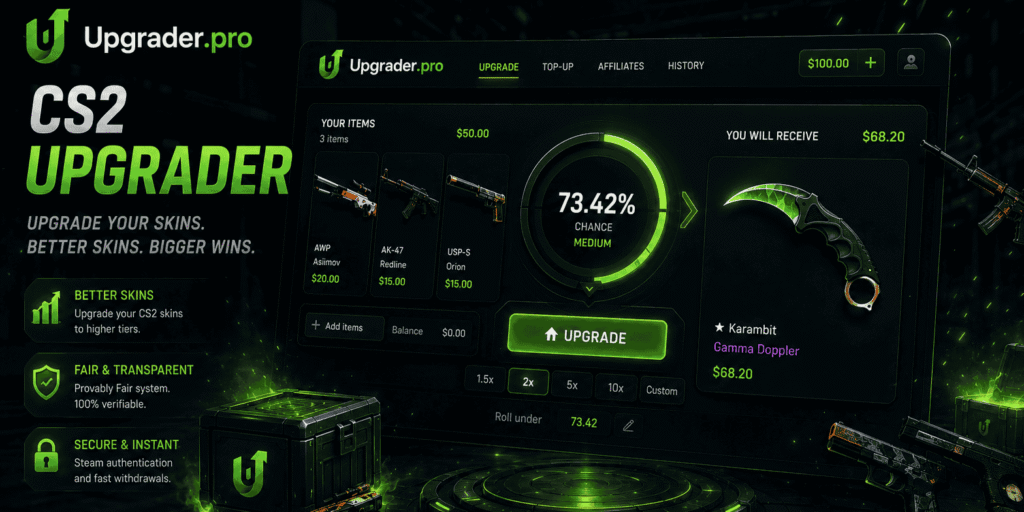
Get Started with Upgrader.pro
To start, you sign in with Steam. You click “Sign In,” you confirm on Steam, and you are in. You do not fill out a form or make a new password. Steam is the place where you already keep your skins, so most players have an account.
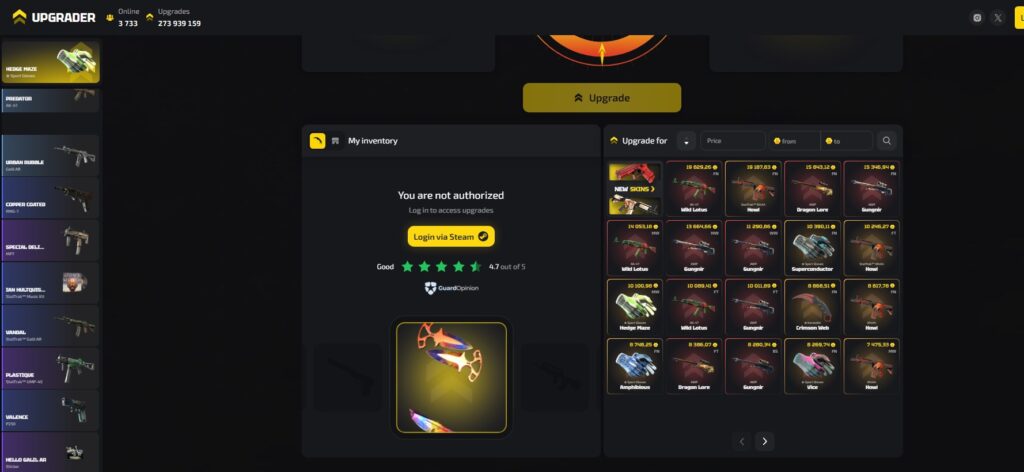
Steam also brings in your skins for you. The skins you already own show up right away, ready to use. Your Steam password stays with Steam. It never comes to us. So you do not share any private details with the site.
The first screen is where you upgrade. Your skins are on one side, and the skins you can win are on the other. We made this CS2 upgrader to be fast, so most people try a first upgrade in about a minute.
You do not have to play right away. Browse the skins first. Watch other players in the live feed. Add funds to your wallet. It works the same way on a phone and on a computer. And if you stop, come back later where you were. Nothing on the site is hard to find, and change your mind at any time.
Explore the Upgrade Interface
The screen is simple. Everything for one upgrade is right there. We designed our CS2 upgrader to keep every upgrade easy to follow.
There are three main parts:
- Your inventory, with all your Steam skins ready to pick
- The upgrade box in the middle, with the chance bar and the multiplier
- The list of target skins you can try to win
To play, you pick a skin on one side and a target on the other. Right away, the screen shows your chance and how big the jump is. The target list also shows the price of each skin, so you can see what it is worth before you aim for it.
The multiplier is a small number, like x2 or x5. It tells you how much bigger the target is than your skin. A bigger number means a bigger win, but a smaller chance. The chance bar shows the same thing in a picture. The green part is your chance to win. A bigger green part is better for you.
It is easy to find a target. Sort by multiplier, like x2, x5, or x10. Or sort by chance, like 30, 50, or 70 percent. A price filter hides the skins that cost more than your balance.
There is also a live feed on Upgrader.pro. It shows real upgrades from other players as they happen. Open any player’s profile and see their real results. So you do not have to just trust us.
Upgrade Your CS2 Skins
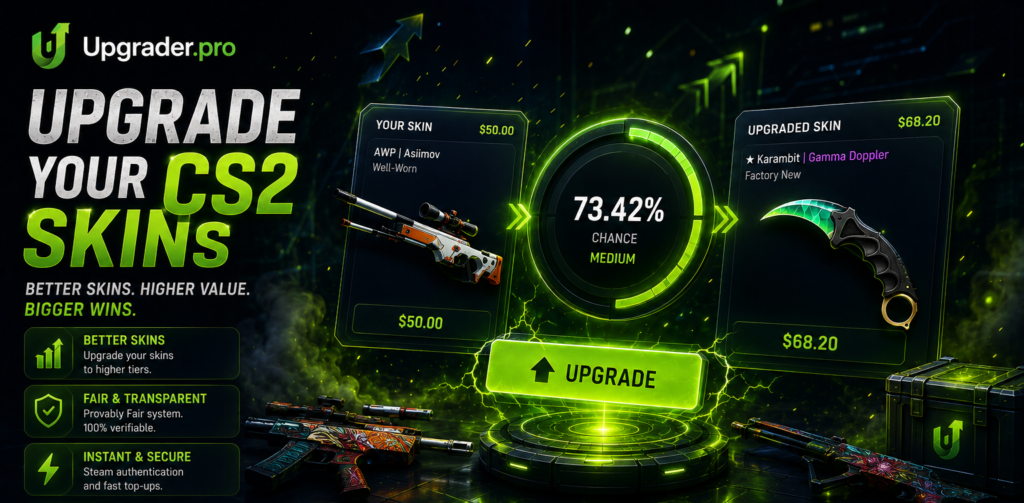
A CS2 upgrade has a few easy steps:
- Pick your skin. You can pick one skin or a few. Their total value sets how high you can aim.
- Pick a target skin. It must be worth more than your skin, because you want to move up.
- Look at your chance. The screen shows it as soon as you pick the target.
- Confirm, and the bar spins.
The chance is easy to understand. A small jump gives you a big chance. A big jump gives you a small chance. That is the deal.
You can watch the bar as it moves. When it stops, you see the result right away.
Here is a simple example. You put in a skin worth $5. You aim for a skin worth $10. The jump is small, so your chance is high. Now you aim for a $50 skin instead. The jump is big, so your chance is low. The screen always shows the real number before you press the button.
Then one of two things happens. If you win, the target skin takes the place of your skin. If you lose, your skin is gone. But you still get a small part back from a bonus draw. The bonus draw gives back some value, not the same skin, and it does not cover the full loss.
After that, it is your choice. You can keep the new skin. You can use it for the next upgrade. You can also send it to Steam. This is what makes the Upgrader.pro CS2 loop so simple. You win, you choose, and you stop when you want. Nothing makes you keep going. You can play one upgrade and stop or play many. Both are fine.
Choose Your Next Upgrade
Choosing your target is a big part of the fun. You can look at all the skins before you risk anything.
There are targets for every budget. Some cost a little more than your skin. Some cost a lot more. If you know what you want, use search. If not, use the filters and the price range.
Remember one thing. The price sets your chance. Your chance comes from the gap between your skin and the target.
- Aim a little higher, and your chance is good
- Aim much higher, and your chance drops fast
- Compare a few targets first, because the price changes the odds
This is why sorting helps on a CS2 upgrader. Most players switch between the multiplier view and the chance view to find the target they want.
There is no right way to play. Some players make small CS2 upgrade steps and grow slowly. Others put $2 on a $40 skin and take the risk. Put $2 on a $4 target, and your chance is good. Put $2 on a $40 target, and your chance is low. All the numbers are on the screen, so you always know where you stand.
A good tip for new players is to start small. Try skins that cost only a little more than yours. This way you learn how it feels before you risk a lot. Stop at any time and come back another day. The skins and the prices will still be there. Take your time, because there is no clock and no rush.
Manage Your Wallet
Your money sits in the wallet. You can open it from the top of the screen. Top-ups are fast, and you can use the money right away.
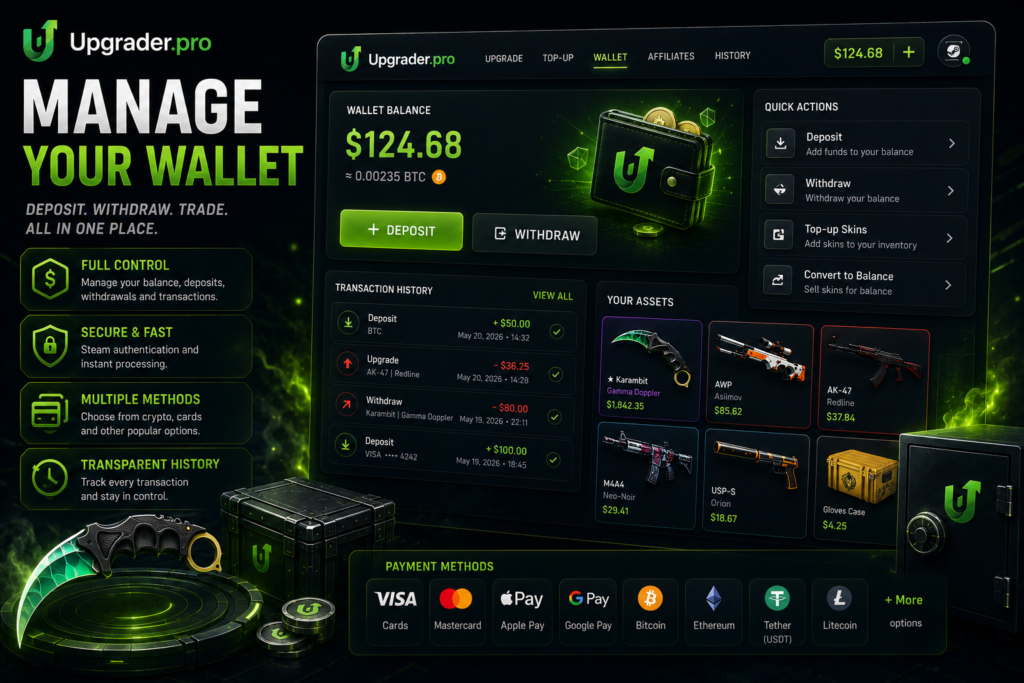
Add funds in several ways:
- Cards, like Visa and Mastercard
- Wallets, like Apple Pay and Google Pay, and fast options like Sofort and Trustly
- Crypto, like USDT, BTC, and LTC
- Skins, if you want to add those, through Skinsback, which takes a small fee
Cards are the most common way to pay. Crypto is handy if you already use it. Skins are useful if you do not want to spend real money at all. Choose the payment method that suits you. You can change it the next time you top up, so you are not tied to one method.
The minimum top-up amount depends on the selected payment method and is displayed during the deposit process. Upgrader.pro always shows the fees before you confirm. There are no surprises later.
Your balance and your history are in one place. The history shows every top-up and every upgrade, so you can always see where your money went. That money pays for every CS2 upgrade you make. Add more when you want. Any money you do not use just stays there for next time.
Withdraw Your Skins
A withdrawal is when you take a skin out of the site and back into Steam. It is the opposite of a deposit. It always comes as a real CS2 skin in Steam, not as cash.
Here are the steps:
- Pick the skins you want from your balance. Select one or multiple skins.
- Confirm the request. Then the site makes the Steam trade.
- Accept the trade in Steam, and the skins are yours.
Withdrawal times may vary depending on Steam and current platform activity. But Steam can be slow at busy times. The skins go to your linked account, next to your other skins. Then you can keep them or use them in a game. If a withdrawal is slow, just message support on Upgrader.pro. They will look into it for you. You do not need to do anything special to get paid. The skin is yours to keep once the trade is done.
Unlock Rewards
The upgrades are the main part. But there are a few extras to help your balance:
- Promo codes at top-up. They add a percent bonus to your deposit.
- A bonus draw when you lose. It gives back part of your skin.
- New skins, season offers, and events with better chances.
You will usually find these near the wallet. To use a code, you type it in the box before you pay. The bonus comes on top of your deposit.
Before topping up your balance, check our Active Promo Codes page for the latest available offers. If you have an active code, enter it before confirming your payment. The bonus draw does not stop a bad day, but it gives a little back.
We regularly update our promotions, so it is worth checking back from time to time. It is worth a look now and then. None of this is free money. And it does not remove the risk. But it adds a bit of value while you play. Think of it as a nice extra, not a reason to play. The extras are there to make the game a bit more fun.
Play with Confidence
Can you trust this site? The best answer is that you can check it yourself. The Upgrader.pro CS2 system is built for that.
It starts with login. You sign in with Steam, so we never see your password. Steam’s own security tools can also help protect your account. The same applies to Provably Fair verification.
Every upgrade uses a Provably Fair system. This is a simple idea. The site gives you a secret code before your upgrade. After the upgrade, you open the code and look at the result. If the code matches, the result was real and not changed.
Here is what that means for you:
- The code is made before you click, not after
- So the result is fixed by math, not by us
- Open the verification page to check the result
There is more that is open. The fees show before you pay. The live feed and player profiles show real results. The chance shows on every upgrade. New players often ask if the site is honest. We do not just say yes. We give you the tools to see for yourself. This allows users to verify upgrade results themselves instead of relying only on the displayed animation. Still, an upgrade has real risk. The odds are always on the screen. It is best to play for fun, not for money.
Need Assistance?
Do you need help? It is close. Contact us through our official Telegram support bot or by email. Our support team can help with deposits, withdrawals, upgrade questions, and account-related issues. The team helps with everyday things:
- A deposit that did not arrive
- A result you want to understand
- A skin that is slow to come
- Anything about your account or login
Support availability depends on the selected contact channel. If you do not want to ask, a short FAQ covers the basics. It answers the most common questions in a few short lines.
One tip. When contacting us, have your account and item details ready. It helps us review your request more efficiently.
Frequently Asked Questions
It is a website for CS2 skins. Here you play a simple game called an upgrade. You put one of your own skins on the line, and you pick a better skin as your goal. Then you try to win it. If you win, you get the better skin. If you lose, your skin is gone. The site does upgrades only, so it is easy to learn and quick to use.
First, you choose a skin to put in. Then you pick a target skin that is worth more. The site looks at the two prices and shows your chance to win. A small jump means a high chance, and a big jump means a low chance. When you are ready, you confirm, and a bar spins to give the result. If you lose, a small bonus draw gives part of it back.
Yes. When you add money, you can enter an active promo code before confirming your top-up. The code applies the available bonus to your deposit. Check our Active Promo Codes page for the latest available offers.
You log in to Upgrader.pro through Steam, so the site never sees or keeps your password. That is a big part of staying safe. Every upgrade also uses a Provably Fair system. This means you can open a code and check that the result was real and not changed. But remember, the game itself still has risk. You can lose the skin you put in, so play with care.
Yes. Upgrader.pro operates as a CS2 skin upgrader with Steam authentication and Provably Fair verification tools that users can access directly through the platform. Users can also verify completed upgrade results using the available verification tools.
You can contact our support team through the official Telegram support bot or by email using the contact information available on the website. You can also check the FAQ for answers to common questions before contacting support.